

Preliminary Preparations
Before installing shaders and water reflections, please ensure the following preparations are complete:
- Ensure Minecraft is successfully installed and has been run at least once to generate necessary game folders.
- Check if your computer’s graphics card drivers are up to date to avoid visual anomalies caused by outdated drivers.
- Select shader components compatible with your game version. For example, for game version 1.20.1, you need to download the corresponding version of OptiFine or the Forge mod.
Detailed Installation Steps
1. Core Component Installation
- OptiFine Installation: Visit the official OptiFine website, select the installer matching your game version (e.g., 1.20.1), click “Download”, wait 10 seconds, and skip the ad page to download the file. Double-click the downloaded .jar file, then click “Install” to complete the installation. If you encounter a “CannotfindMinecraft” error, you need to first download the corresponding vanilla game version via the official launcher.
- Forge and ShadersModCore Installation: If using the Forge mod loader, you need to drag the ShadersModCore file into the
.minecraft/modsfolder. This step is a basic dependency for shader functionality, so ensure the mod version matches your game version.
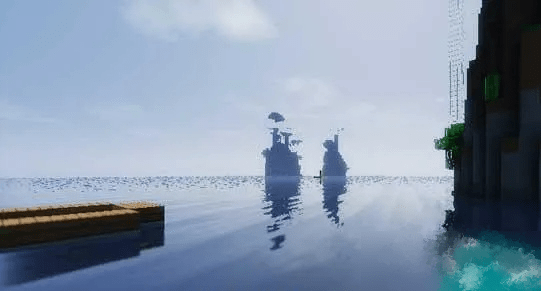
2. Folder Configuration
In the game’s root directory (usually the .minecraft folder), create a new folder named shaderpacks. If this folder already exists, you can directly place shader files into it.
Copy the downloaded shader pack (a .zip file) into the shaderpacks folder. Important: Do not extract the file; place the complete .zip archive directly.
3. In-Game Settings
Launch the game, press ESC to open the menu, and select “Options” -> “Video Settings” -> “Shaders”.
In the list on the left, double-click to select the installed shader pack (e.g., KUDA, SEUS, etc.), then click “Done” to enable it. If the shader pack does not appear in the list, check if the file is placed in the correct path.
4. Additional Resource Pack Settings (Optional)
If you also want to enhance texture quality, place downloaded resource pack files into the .minecraft/resourcepacks folder, then enable them in-game via “Options” -> “Resource Packs”.
Common Problems & Solutions
- No “Shaders” Option After Game Launch
- Cause: The shader mod failed to load.
- Solution: Check mod version compatibility or reduce conflicts with other mods.
- Completely White Screen or “Invalidprogramcomposite” Error
- Step 1: Update your graphics card drivers to the latest version.
- Step 2: Open the
composite.vshfile inside the shader pack using a text editor. Change the linefloattimPow=XXX;tofloattimPow=3.0f;.
- Mosaic or Tearing Effects on Water
- Edit the
composite.fshfile. Add the following code below thecompositeFormatfield:
- Edit the
“`glsl
constintcolortex4Format=RGB16;
constintcolortex5Format=RGB8;
constintcolortex6Format=RGB16;
constintcolortex7Format=RGB8;
“`
- And add
/DRAWBUFFERS:4567/to the end of the file. Also modify the texture definitions in thefinal.fshandcomposite1.fshfiles accordingly. - Game Lag or Crashes
- Cause: Shader packs have high hardware requirements.
- Solution: Choose a lightweight shader pack (e.g., SILDURS) or lower your in-game video settings.
Recommended Shader Packs & Usage Suggestions
- Realistic Style: CONTINUUM shaders are renowned for extreme environmental detail and dynamic lighting, suitable for high-performance PCs.
- Smooth Experience: KUDA shaders offer optimized visuals with lightning effects, ideal for mid-range systems.
- Color Enhancement: SILDURS shaders use bright color palettes and animated vegetation to boost visual vibrancy.
Important: Always back up your world saves (located in .minecraft/saves) before installation to prevent accidental data loss.


